Courses
A course in Moodle is an area where a teacher will add resources and activities for their students to complete. It might be a simple page with downloadable documents or it might be a complex set of tasks where learning progresses through interaction. Progress can be tracked in a number of ways.
Manage Courses and Categories
Course categories organize courses for all Moodle site participants. The default course category on a new Moodle site is “Miscellaneous” (although this can be renamed) A Course creator, Administrator or Manager can put all courses in the Miscellaneous category. The list of courses within a category by default shows the teachers and the summary of each course.
To know more about Course categories
Add a Category
Most people organize their courses by department and college or by topic. Be sure to test the organizational scheme with a few users before entering a large number of courses, to save time in moving them later.
Adding categories is very simple:
- Go to Administration > Site administration > Courses > Add a category
- Complete the details required and click ‘Create category.’
- Alternatively, you can go to Administration>Site administration>Courses>Manage courses and categories and click the link ‘Create new category’.
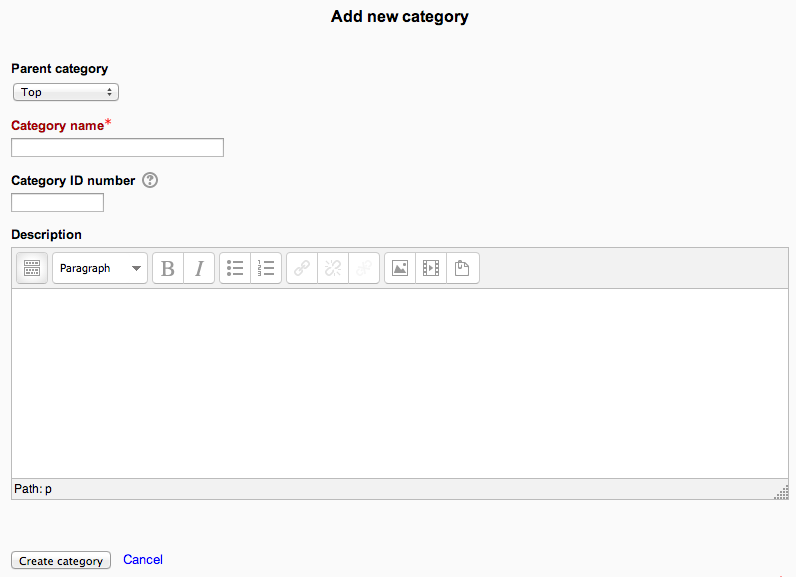
If the category is visible, the course category description will be displayed to users when they enter the category, above the list of courses.
Course Default Settings
You are here: Administration > Site administration > Courses > Course default settings
Course default settings allow you to set the default settings used for new courses.
The following defaults are included:
- Format
- Number Weeks/Topics
- Visibility of hidden sections
- Number of News Items to show
- Showing of Gradebook to learners
- Showing of activity reports
- Maximum upload size
- Metacourse
- Completion Tracking
- Completion tracking beings on enrolment
- Course Tagging
See Course Settings to learn more about these settings.
Course Request
The course request feature can be enabled by an administrator in Settings > Site administration > Courses > Course request.
An admin can set the default category for course requests, whether users can select a category when requesting a course, and who can receive notification of course requests (from a list of users with the capability moodle/site:approvecourse).
A ‘Request a new course’ button will then appear on the ‘All courses’ page. The All courses page can be accessed via a link in the Courses block.
If course requests are enabled, by default all authenticated users can make course requests.

Backup
A backup allows a site administrator to save everything associated with a moodle site. These backups can be restored to bring a site back to the point in time when the backup was made.
Default settings for course backups can be set by a site administrator in Settings > Site administration > Courses > Backups > General backup default.
Selected settings may be locked, so that they cannot be changed when creating a course backup. By selecting a time in the “Keep logs for..” dropdown, it is possible to specify how long backup logs information is kept before being deleted. As this information may be very large, it is recommended the length of time chosen be quite short.
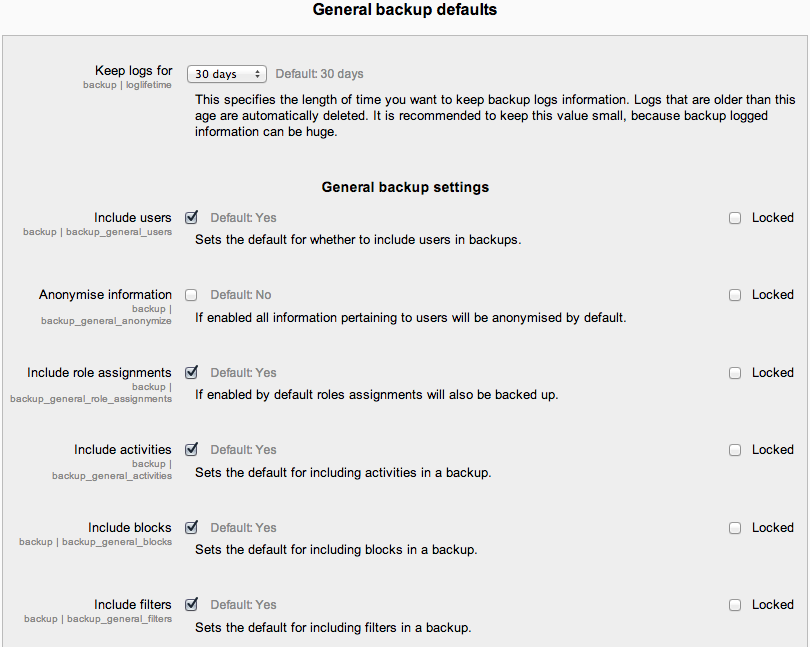
See Automated Course Backup for scheduling automatic backup.
Upload Courses
An administrator can upload multiple courses via text file in Administration > Site administration > Courses > Upload courses. In addition to creating new courses, this functionality may also be used to update or delete courses, or import content from another course.
To know more about Upload courses.