Scales
Scales are a way of evaluating or rating a students’ performance. Moodle offers a standard set of numeric scales. It is also possible to create custom scales which can be available on the site. For example, you can give the student a word or small phrase as a way of rating or giving a student feedback.
Scales may be used in Forums, Glossaries and Assignments for rating and/or grading a student’s activity.
Standard scales
Moodle includes 100 different numeric scales which can not be edited, and one non-numeric example.
Numeric
Moodle includes numeric scales that range from a maximum of 100 to a minimum of 1. For example, selecting a scale of 10, will allow a rating on a scale between 10 and 1. Numeric scales can be calculated as a grade.
Creating a new scale
New scales can be created by teachers with editing rights or by administrators or by any user with the manage scales role capability.
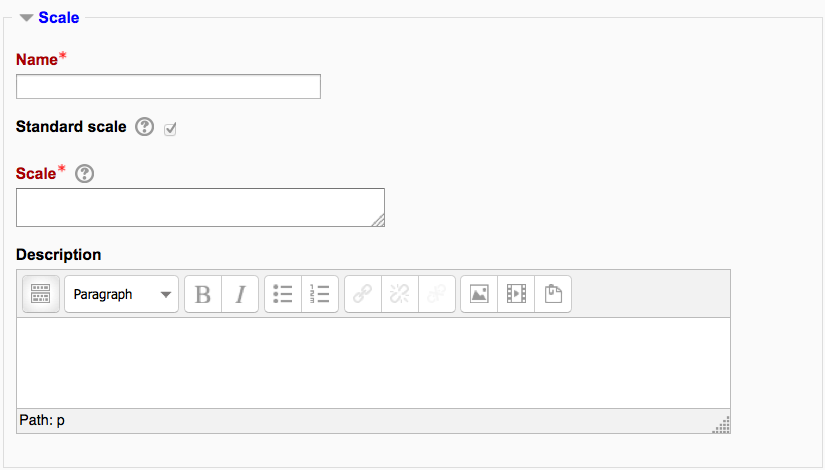
Creating course scales
- Click the “Add a new scale” button in Settings > Grade administration > Scales or via the gradebook Scales tab.
- On the next page give your scale a name in the Name box that will identify it among other scales.
- ‘Standard’ scale is a scale which can be applied to every course in Moodle. Only those with site permissions such as administrators can make a new scale ‘standard’. A regular teacher can only create a scale for their own course.
- In the Scale box, create your scale. Each item in the scale should be separated by a comma. You can use as many options here as you require. You must order the comma separated elements in increasing order of value. For example, an A,B,C,D scale must be entered as D,C,B,A.
- Write a detailed description in the Description box to remind you (or other teachers) of how the scale is to be used.
- Save the changes.
Creating a standard scale
An administrator can create a standard scale which can be used in any course in Settings > Site administration > Grades > Scales.
Using a scale
First the teacher needs to assign a specific scale to the activity using a drop down menu in the activities setting. Then the teacher and/or students can rate an activity element (for example, a post in a forum) with the pre-defined scale.
Editing a scale
If a scale has not yet been used, you will see an edit, move, and delete icon in the edit column.
Once a scale is used for an activity, it is no longer possible to move or delete it, and you can only edit the scale name and description.