Grades
General Settings
Default values for all grade settings can be set by an administrator. The easiest way to do so is to log in as admin then browse a course gradebook and follow the ‘Change defaults’ links.
The following additional grade settings can be found in Administration > Site administration > Grades > General settings. The settings will affect all gradebooks used by all teachers.
Graded Roles
Graded roles are the type of user that will appear in the gradebook. Most of the time “student” is the only one needed.
User profile report
The default user profile report setting has just one option, ‘User report’, unless a custom user report has been added to the site.
Teachers can view the user reports for all or selected students in the course in Administration > Grades administration > User report.
Include scales in aggregation
Scales can be included as numbers in all aggregated grades across all gradebooks in all courses. Changing this setting will force all aggregated grades to be recalculated.
If this is checked (and it is by default) then all custom scales will have a corresponding value that is assigned based on the number of options in the scale (ie. three values will have values of 1,2,3) and this will be included in the grade aggregation.
Enable publishing
Grade publishing is a way of importing and exporting grades via a URL without being logged in to Moodle. Grade publishing is intended for administrators only. Security implications should be thoroughly considered before allowing non-admin users to publish grades.
Grade publishing may be enabled by checking the gradepublishing box. If enabled, administrators are provided with grade export publishing settings in each course gradebook.
Recover grades default
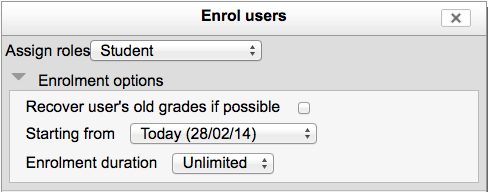
When manually enrolling a student in a course, there is an option ‘Recover user’s old grades if possible’, however this checkbox is easy to miss. Enabling ‘Recover grades default’ results in ‘Recover user’s old grades if possible’ being ticked for every course.
Unlimited grades
Teachers can enter grades over 100% directly in the gradebook if the unlimitedgrades setting is enabled.
Grade Category Settings
Grade category settings in Settings > Site administration > Grades > Grade Category Settings enable administrators to choose which options appear for teachers when adding/editing a grade category in their course gradebook, and their default values. Settings are applied site-wide.
There are 2 check boxes next to most features on this page. The “Force” check box eliminates any options the teacher will see. For example, the teacher will only see and be able to use the “mean of all grades” as an aggregation. The “Advanced” checkbox will hide the specific feature until the “Show advanced” button is used by the teacher. This will reduce initial menu choices for teachers but allow them to see them if they wish.
Hide forced settings
The default is to show the forced settings (see below). If these are not to be used check this box to hide them. Unchecking the “Force” setting will simply restore each category’s setting to its previous state, prior to the application of the forced global setting. Administrators can thus experiment with these settings without fear of losing any specific category settings.
Aggregation settings
Select the type of aggregation method from a pulldown menu from 1 of 9 choices. However there are two check boxes which will effect this default, in addition to the Hide forced settings.
The “Force” checkbox only allows the selected aggregation method to apply. This results in switches and drop-down elements being disabled in all course gradebooks. For example, if the Aggregation Type setting is forced as “Mean”, teachers will no longer have the option to change the aggregation type of each grade category separately, the option will not be there in the category edit form.
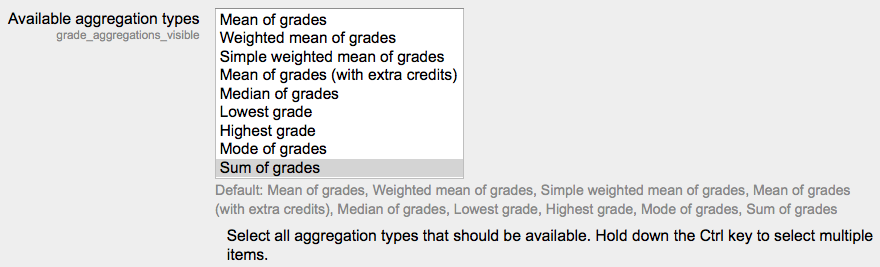
Available aggregation types
Administrators may reduce the number of aggregation types available for teachers to use.
By default, all existing aggregation types are available (Mean of grades, Weighted mean of grades, Simple weighted mean of grades, Mean of grades (with extra credits), Median of grades, Lowest grade, Highest grade, Mode of grades, Sum of grades). This list may be reduced to only a few types, with additional types being enabled as/when teachers request them.
Note that reducing the number of aggregation types simply results in disabled aggregation types not appearing in the aggregation type dropdown menu. All existing grade category calculations remain the same, regardless of whether the aggregation type is later disabled by an administrator.
Aggregate only non-empty grades
The default is no.
Include outcomes in aggregation
The default is no.
Aggregate including subcategories
The default is no. Yes will include subcategory grades in the aggregation.
Keep the highest
Keeps only the X number of highest grades in the report
Drop the lowest
Drops the lowest X number of grades from the report.
Grade item settings
Location: Administration > Grades > Grade item settings
Grade item settings are the various settings that the administrator is able to edit for all gradebooks used by teachers. These settings will change what items are displayed for each grade. As administrator, you would turn on or off various settings and the teacher would input the actual data.
Grade display type
This is the type of grade that is to be shown for each individual grade. Different school districts use different grading systems so this can be changed to suit your district.
- Real - Grade from minimum to maximum range indicating total points received. Default from 0-100 but may be arbitrary.
- Percentage - Grade from 0 - 100% indicating the total points received divided by maximum possible amount times 100.
- Letter- Grade in the form of a letter representing a range of percentages.
Overall decimal points
This setting is for display purposes only. Grade calculations are made with an accuracy of 5 decimal places and grade letters, if used, are assigned accordingly.
If rounding of grades in grade calculations is required, the round(number, count) function may be used.
Advance grade item options
In Moodle 2.0 Course administration > Grades > Category & Items > Add grade item, or Simple view>edit item brings up the Grade item page with the “Show advanced” button.
These features can be set or viewed:
Item info ID Number Grade Type Scale Minimum Grade Maximum Grade Grade to pass Offset Multiplicator Grade display type Overall decimal places Hidden Hidden until Locked Locked after
Both Full and Simple views have “Add category” and “Add grade item” buttons at the bottom of the page.
Scales
Scales are a way of evaluating or rating a students’ performance. Moodle offers a standard set of numeric scales. Scales may be used in Forums, Glossaries and Assignments for rating and/or grading a student’s activity.
Read more about Scales
Letters
Grade letters, also called letter grades, are symbols used to represent a range of grades. For example “A” could be used to represent grades of 80% and above, “B” to represent grades between 70 and 80%, and so on. Alternatively, you could have “Pass” for grades above 50% and “Fail” for grades below 50%.
Setting grade letter site-level defaults
To set grade letter site defaults :
- Login as an administrator.
- Access Administration > Site administration > Grades > Letters.
- Change grade letters and/or boundaries as required.
- Scroll to the bottom of the page and click the “Save changes” button.
Read more about Grade Letters
Report Settings
The gradebook report settings determine the appearance of gradebook reports in all courses on the site. The site administrator will find the default and enabled/disabled settings in the administration area. There
Teachers can use the “My report preferences” link in any course to essentially change their defaults and the way a report will display. These preferences become the new defaults for that teacher until they are changed by the teacher.