Tags
Tags allows students and teachers to describe their interests in a way that is easy for people with similar interests to find them.
Tags Settings
Enable tags functionality
By default, site-wide tags functionality is enabled. If this is not required, tags functionality may be disabled by an administrator by un-checking the usetags box in Settings > Site administration > Advanced features.
Show course tags
The Tags block has one setting which may be changed by an administrator in Settings > Site administration > Plugins > Blocks > Tags.
- Show course tags - This enables students to tag courses.
Using Tags
Describing interests for tags
To tell everyone what your interests are, go to your profile editing page and enter your interests/tags separated by commas. If a tag you entered already exists, you get associated to that tag. If it does not, a new tag will be created.
Blog post tags
After writing a blog post, users are allowed to add user defined tags about the post. These are usually keywords relevant to the post separated by commas. If a tag you entered already exists, you get associated to that tag. If it does not, a new tag will be created. If one tag is associated with interests and a blog post, the tag page will show both.
Tag pages
Each tag in Moodle has a page associated with it. The tag page brings together users, information and resources related to that tag. A tag has a description, links to related tags, a list of users associated with that tag and Moodle blocks with resources related to it.
If a user has the capability to edit tags, a link “Edit this tag” will appear in the tag page. The tag may be edited to add a description and related tags.
Tag clouds
A very effective way of viewing all tags is in a tags block, or “tag cloud”. A unique feature of tag clouds are that the size of each tag is related to the number of items associated with it. The larger the tag, the more items associated with it.
Search tags
The Search tags page in Navigation > Site pages > Tags allows you to look for existing tags.
Course tags
If the administrator has enabled course tags in the Tags block setting, then students will have the option to add tags related to the course they are currently in.
Managing Tags
Tags can be managed by a site administrator or manager (or any other user with the capability moodle/tag:manage) in Settings > Site administration > Appearance > Manage tags.
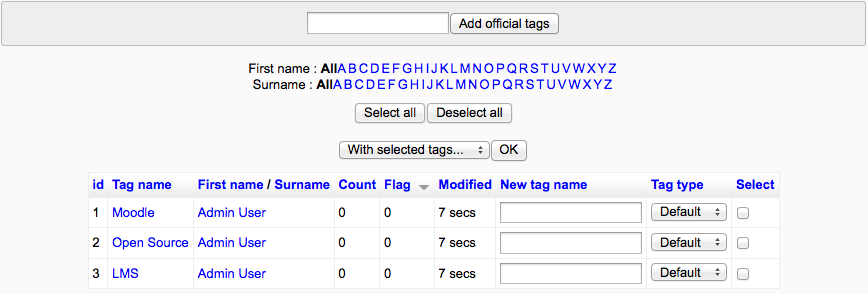
The manage tags page provides a list of tags, together with information on their creators, how many times they are used, when they were last modified and which tags have been flagged as inappropriate. Inappropriate tags are shown in red when using the default theme.
Selected tags may be have their flag reset (in other words remove the inappropriate flag) or be deleted. Tag names and types may also be changed.
The manage tags page also allows for official tags to be added. Official tags are tags which are added by a site administrator and are displayed to all users of the Moodle site when adding a blog entry. Creating a set of official tags for commonly used topics can reduce the amount of duplication in blog tags.