Security
IP Blocker
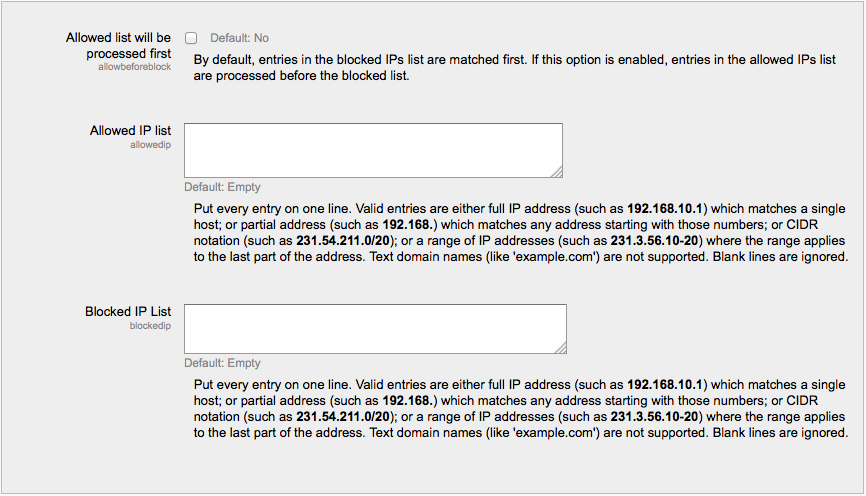
An administrator can set a list of allowed and/or blocked IP addresses in Settings > Site administration > Security > IP blocker.
- By default, entries in the blocked list are processed first, but checking the box Allowed list will be processed first reverses this order.
- Each entry in the allowed or blocked list goes on one line, with either the full IP address, partial address or range. Blank lines or domain names written as text (like moodle.org)are ignored.
Site Policies
A site administrator can set site policies affecting the security and privacy of the site in Settings > Site administration > Security > Site policies.
Read Site Policies for more information.
HTTP Security
HTTPS for logins can be enabled by an administrator in Settings > Site administration > Security > HTTP security.
Use HTTPS for logins
HTTPS encrypts the user’s login data, so it’s difficult to sniff out a user’s username and password on the network. You will need to enable HTTPS on your server before you turn on this setting, or else you will be locked out of your site. Every web server has a different method for enabling HTTPS, so you should check the documentation for your web server.
Notifications
An administrator can set up login failure notification in Settings > Site Administration > Security > Notifications.
- Display login failures to - Set this to administrators to be warned of anyone attempting to steal student or teacher logins. When set, a link stating the number of failed logins appears in the top right corner of the page when an administrator logs in. Click the link to access the login error page.
- Email login failures - If you’re concerned about login failures, you can set up email notification for administrators or any/all users who can change the site configuration.
- Threshold for email notifications - This sets the number of failed logins for a given user from a single computer that will trigger notification.
Note: The number of failed login attempts that result in account lockout may be set in Administration > Site administration > Security > Site policies.
Anti-Virus
The use of the open source virus scanner clam AV on uploaded files can be enabled by an Administrator in Settings > Site administration > Security > Anti-Virus.
Clam AV should be installed on your server. See http://www.clamav.net for more information.