Add a new user
An administrator or manager can create new user accounts in Administration > Site administration > Users > Accounts > Add a new user.
General
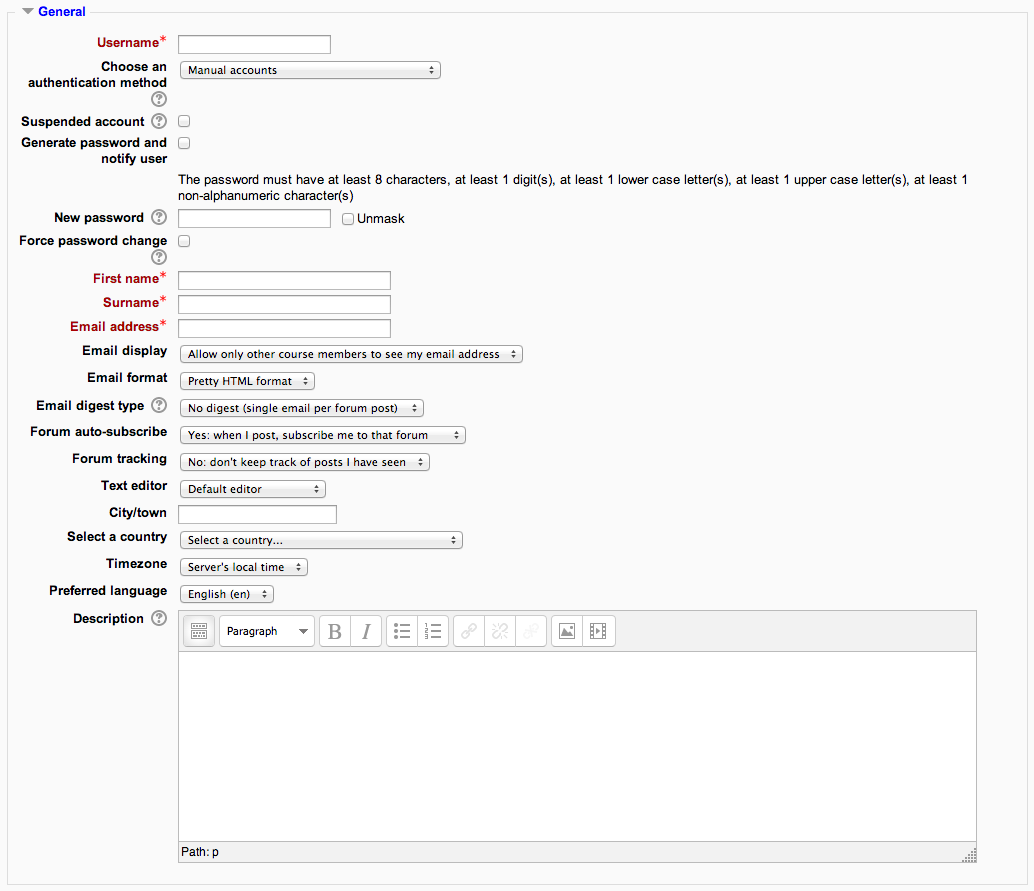
Username - The user will use this username to log into the Moodle. It should be unique.
Authentication method - Accounts created by an administrator use the Manual Accounts method, and accounts created by the user themselves using the email sign-up method use the E-mail based self-registration method.
Suspended account - Suspended user accounts cannot log in or use web services, and any outgoing messages are discarded.
Generate password and notify user - Moodle will generate a temporary password and email the user with instructions on how to log in and change it. The email message (as in the screenshot below)may be changed in Site administration > Administration > Language > Language settings. Select ‘moodle.php’ and the string identifier newusernewpasswordtext
Password - This is the user’s password.
First Name - The user’s first name.
Surname - The user’s surname.
Email address - Password reset notices, forum digests and other messages are sent to this email address from the Moodle site.
Email display - This setting controls who can see the user’s email address.
Email format - This setting can be used such that Moodle will send text-only emails to the users.
Email digest type - This setting set whether the user will receive an email for each new forum post in subscribed forums, or if new posts should be sent once per day in a digest, and which type of digest.
- No digest (one receives individual emails),
- Complete (a single digest daily) or
- Subjects (a single digest daily with only the post topics included).
Forum auto-subscribe - If a user subscribes to a forum, new posts will be sent in the digest as specified. This setting sets whether a user is automatically subscribed to forums or if a manual click on the subscription button in each forum is required.
Forum tracking - This setting specifies whether new posts written since the user’s last visit should be highlighted a such.
When editing text - This setting specifies whether the user prefers to see the WYSIWYG text editor or just a plain text box.
City / town - The user’s city or town.
Country - The user’s country.
Timezone - This setting is used to adjust the times of messages and assignment/quiz due dates to match the user’s local time.
Preferred language - This will cause the Moodle interface to be displayed in the specified language. Note: Content will not be translated automatically, but if multi-language content is entered the appropriate language content will be displayed, if available.
Description - Information about the user that other users can see.
User Picture
The user’s picture can be displayed next to the user’s name, to any content he/she has posted in Moodle activities such as forum.
Additional names
Here you can fill additional names if you required.
Interests
The list of interests can be used as a way of connecting users with similar interests. Tags must be enabled on the site.
Optional
These include: Web Page, ICA number, Skype ID, AIM ID, Yahoo ID, MSN ID, ID number, Institution, Department, Phone, Mobile Phone, Address.