Course completion
Course completion shows if a course has been completed. It can show the progress a student is making towards finishing the course according to specific criteria. The criteria can include meeting an activity’s grade level or a manual checking “complete” by either the student and/or teacher. The report can also show if the student has completed another course(s) that is marked as a “completion dependent” course.
Course completion does not have a “restrict access” function. It is best thought of as a report.
Course completion settings
In order to use the course completion features, it has to be enabled in the site administration settings before the course completion link will appear in Administration > Course administration > Course completion. There are also settings which need to be reviewed in the course administration settings. You should also install the Course completion status block and if required the Self completion block to view reports and use some of the features of course completion.
General

Choose here how you wish to mark the course complete -whether you want Any or All of the requirements that follow to count towards completion.
All other settings below are collapsed by default.
Condition: Activity completion
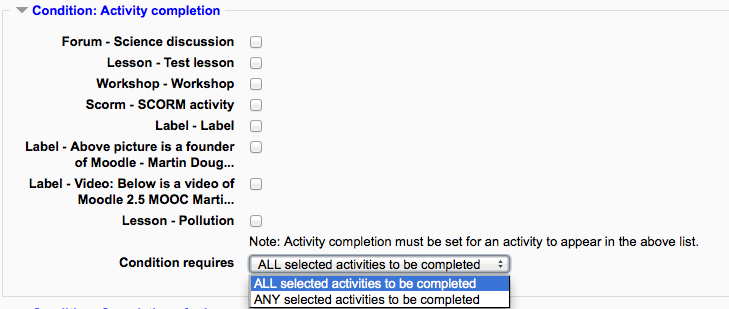
Activity completion settings
Tick the boxes of the activities you wish to count towards completion of the course. (You need to have Activity completion enabled to be able to do this. You can decide whether ALL of the activities must be completed or ANY one of them.
Condition: Completion of other courses

Settings when no other courses have course completion enabled
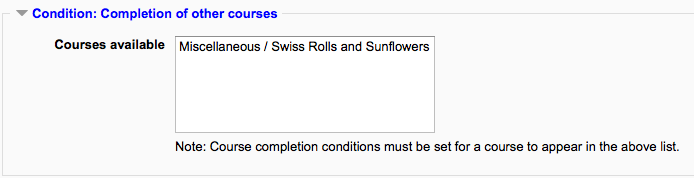
Settings when course completion is enabled in one or more other courses
This setting allows you to make “the completion of another course” as a condition for completing the course you are currently working in. This does not block the student from your current course; it simply means that the current course will not be marked complete until the first course has been marked complete. Thus, completion of the current course is dependent upon completion of an earlier course. Just select one or more courses in the “Courses available box”. Note: Once you have selected a course, it’s not currently possible to remove it.
Condition: Date

If you tick the Enable box you can then set a date after which the course will be declared complete.
Condition: Enrolment duration

If you tick the Enable box you can then choose a number of days after enrolment upon which the course will be marked complete.
Condition: Unenrolment
If you tick Enable here then the course will be marked complete once the student is unenrolled.

Condition: Manual self-completion

If this is enabled then a student can mark the course complete themselves from the Self completion block.
Condition: Manual completion by others
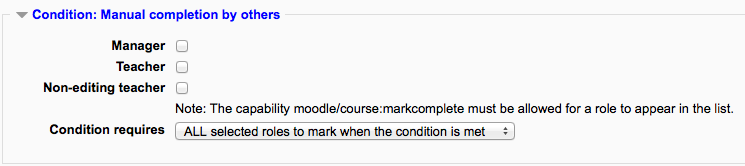
Users with selected roles may mark the course as complete if their role is ticked here. The roles listed are ones for which the capability Mark users as complete in course completion is allowed.
ALL means that each role must mark the course complete before; ANY means that it will be classed as complete once one role has marked it complete.
Course administration settings
Course administration > Edit settings
- Completion tracking must be enabled.
Site administration settings
Use Site administration > Advanced features > Enable completion tracking (check enabled) in order to allow completion tracking on your site.
You can set Completion tracking as On or Off in new courses as a course default in Site administration > Courses > Course default settings.
Tip: The Cron trigger default for course completion is every 10 minutes. This is not usually what the Teachers and Students expect. The length of time can be impacted by the server cron schedule and by the code found in /lib/completionlib.php under “Cache expiry time”.
Course completion capabilities
There are two capabilities, both of which are allowed for the default roles of manager, teacher and non-editing teacher:
- View course completion report
- Mark users as complete in course completion