Language Customization
You are here: Administration > Site Administrations > Language > Language Customisation
The language editing interface enables you to easily change any word or phrase used on the site. For example, you may want to change the word “Course” to “Area.”
Note: in language editing you can check for untranslated words in specific areas of the system.
To change a word or phrase
- Select on ‘Language’ and click ‘Language customisation’ on the Site Administration block.
- Choose language pack to change words in (English).
- Select ‘Open language pack for editing’.
- Select ‘Continue’.
- Fill in the Filter strings form to locate the text you are looking for.
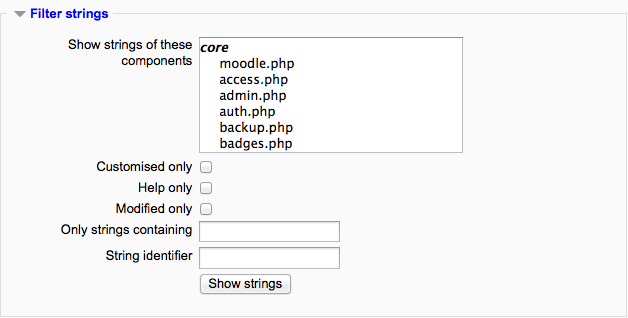
Select ‘Show strings’ to show the component name where the string was found.
Enter the new word/s in the Local customisation box.
Save your changes, edited files may either be saved in the parent language folder or, preferably, in the local language folder, parentlanguage_local.
Click ‘Save changes’, the changed phrase will be highlighted in a different colour.
Note: The local language folder will be created automatically if it doesn’t yet exist. If you wish to make further changes later, be sure to check that files of edited strings will again be saved to the folder parentlanguage_local, switching folders if necessary.
Note: Filter strings Form
Show strings of these components - Click or Ctrl+click to select one or more files that contain the string you want.
Customized only - check this field to display only those strings that are already present in your local pack.
Help only’ - check this field to display only help tooltips, that is the texts used when clicking the question mark icon.
Modified only - displays only the strings that are modified in the current session.
The term ‘customized’ means strings that are saved on disk in your local pack directory. The term ‘modified’ represents the changes made since the last checkin string into the language pack. Customized strings (already saved in a file) are highlighted with green. Modified strings (not saved in a file yet) are highlighted with blue.
Tip: You may want to use this option look at your current work before you check it in.
Only strings containing - insert a phrase that must appear in the string. For example, if you put a word ‘student’ here, you will get only those strings that contain this word.
Tip: The ‘Only strings’ filter can be used for a total search for a term used in your Moodle site for the selected language pack.
- String identifier - if you know the string identifier (it is the first parameter of the get_string() function), type it here. For example, the names of activity modules are defined in strings ‘modulename’.
Use combination of filter settings to get the required set of strings.