Quiz
The quiz module has additional settings which may be changed by an administrator in Administration > Site administration > Plugins > Activity modules > Quiz. The values you set here define the default values that are used in the settings form when you create a new quiz. You can also configure which quiz settings are considered advanced.
Time limit
Default time limit for quizzes in seconds. 0 mean no time limit.
When time expires
What should happen by default if a student does not submit the quiz before time expires.
Submission grace period
If what to do when time expires is set to ‘Allow a grace period to submit, but not change any responses’, the default amount of extra time that is allowed, in seconds.
Last submission grace period
There is a potential problem right at the end of the quiz. On the one hand, we want to let students continue working right up until the last second - with the help of the timer that automatically submits the quiz when time runs out. On the other hand, the server may then be overloaded, and take some time to get to process the responses. Therefore, we will accept responses for up to this many seconds after time expires, so they are not penalised for the server being slow. However, the student could cheat and get this many seconds to answer the quiz. You have to make a trade-off based on how much you trust the performance of your server during quizzes.
Attempts allowed
Restriction on the number of attempts students are allowed at the quiz.
Grading method
When multiple attempts are allowed, which method should be used to calculate the student’s final grade for the quiz. Options - Highest grade, Average, first and last.
Maximum grade
The default grade that the quiz grade is scaled to be out of.
Shuffle questions
If you enable this option, then the order of questions in the quiz will be randomly shuffled each time a student attempts the quiz.
Automatically start a new page
When adding questions to the quiz page breaks will automatically be inserted according to the setting you choose here.
Shuffle within questions
If you enable this option, then the parts making up the individual questions will be randomly shuffled each time a student starts an attempt at this quiz, provided the option is also enabled in the question settings.
How questions behave
Default setting for how questions behave in a quiz. It can be configured in *Administration > Site administration > Plugins > Question behaviours > Manage question behaviours.
Each attempt builds on the last
If multiple attempts are allowed then each new attempt contains the results of the previous attempt.
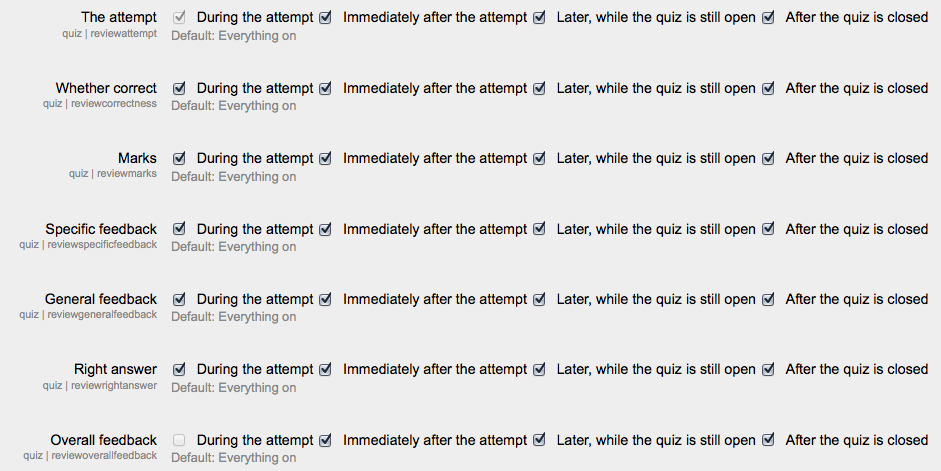
Review options
Show user’s picture
Choose whether to show user’s picture on screen during attempts or not.
Decimal places in grades
Number of digits that should be shown after the decimal point when displaying grades for the quiz.
Decimal places in question grades
Number of digits that should be shown after the decimal point when displaying the grade for individual questions.
Show blocks during quiz attempts
Show blocks during quiz attempts.
Require password
Students must enter this password before they can attempt the quiz.
Require network address
Students can only attempt the quiz from these computers.
Enforced delay between 1st and 2nd attempts
If you set a time delay here, the student cannot start their second attempt until this much time has passed since the end of their first attempt.
Enforced delay between later attempts
If you set a time delay here, the student cannot start their third, fourth, ... attempt until this much time has passed since the end of their previous attempt.
Use a ‘secure’ popup window for attempts
Force the attempt to open in a popup window, and use JavaScript tricks to try to restrict copy and paste, etc. during quiz attempts.
Autosave period If enabled, student responses will be saved every minute/two minutes/five minutes (according to selection) This is useful so that students don’t lose work but does increase the load on the server.