Text Editor
The text editor (sometimes referred to as the ‘HTML editor’ or even ‘TinyMCE’) has many icons to assist the user in entering content. Many of these icons and functions should be familiar to anyone who uses a word processor. Some examples of where you will see the text editor include: Editing Section headings, description of an activity, writing an answer to a quiz question or editing the content of many blocks.
Note: It’s possible to disable the TinyMCE editor and only use a plain text editor from Administration > Site administration > Plugins > Text editors > Manage editors.
An individual user can select an editor in their profile from Administration > My Profile settings > Edit profile.
Collapsing and expanding the editor
The TinyMCE editor first appears with just one row of buttons. Clicking the icon top left will expand it to three rows.
Toolbar buttons
For those who are not familiar with the tool bar, here are the buttons as grouped in their rows. Remember that the site administrator can edit or provide additional buttons.
Row 1

|
|
|
|
|
|
|
|
|
|
|
|
|
Row 2

|
|
|
|
|
|
|
|
|
|
|
|
|
|
|
Row 3

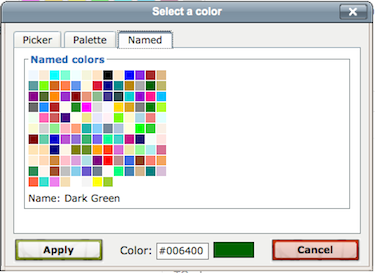
Colour pickers
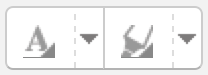
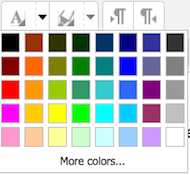
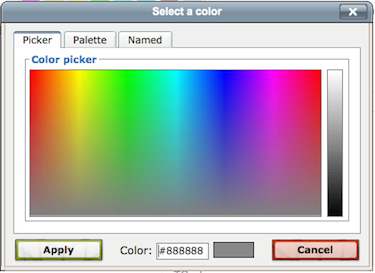
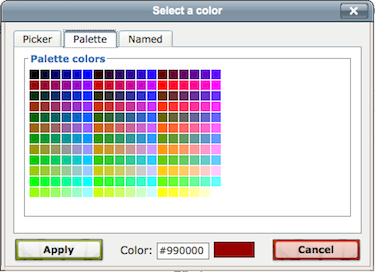
There are four levels of selecting a font or background colour,
- A quick pick 5x8 matrix of colours
- “More colours” that links to Picker, Pallet and Named tabs
Insert table
To add borders to a table
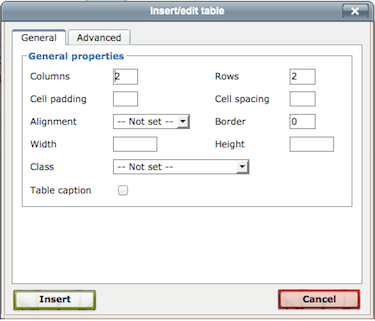
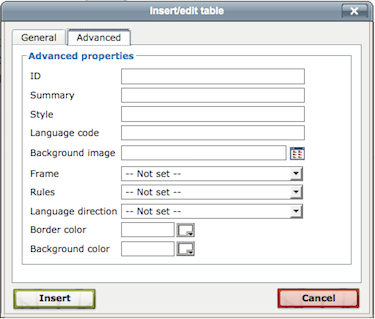
Cell borders are crucial for helping readers to follow the rows across the screen. If they aren’t showing already you can add them as follows:
- In the Wiki page containing your table, click its Edit tab
- Carefully select all the cells of the table
- Then right click (Macs: Command+click or Ctrl+Click) over any part of your selection to get a context menu; from it select Cell > Table Cell Properties; the cell properties dialog box then loads.
- Click on its Advanced tab, set Border Color to black (for instance), then click Apply, and then click Update.
- Click Save; the Wiki page containing your table will then load displaying its borders.
Manage Editors
A site administrator can enable / disable text editors in Administration > Site administration > Plugins > Text editors > Manage editors. By default the TinyMCE HTML editor and plain text area are enabled.
TinyMCE HTML editor settings
The TinyMCE HTML editor has its own settings page Administration > Site administration > Plugins > Text editors > TinyMCE HTML editor > General settings with the following options:
Plugins
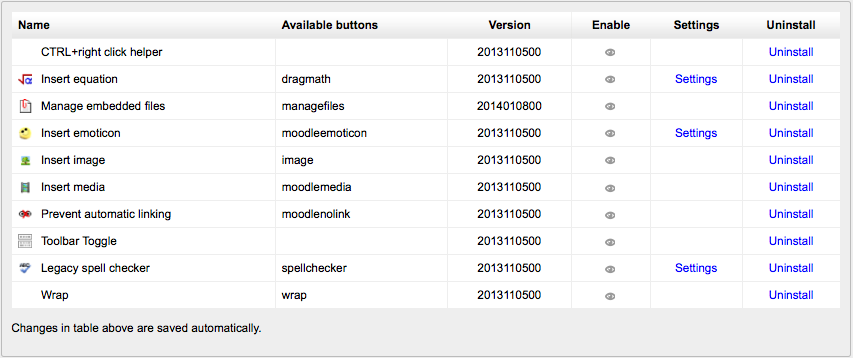
- Buttons for equations, emoticons,images, media, automatic linking, and legacy spell-checking may be enabled, disabled or uninstall here by clicking on their eye.
- Additionally the equation, emoticon and spell check buttons have links to their Settings screens.
Manage embedded files
This plugin allows users to add, delete or override files embedded in the current text area, for example in a label or topic summary.

Insert equation
Accessed from Administration > Site administration > Plugins > Text editors > TinyMCE HTML editor > Edit equation, this allows you to enable or disable the TeX filter in the editor context and thereby display the Dragmath button. If you have a global custom TeX filter, then disable this setting.
Insert emoticon
Accessed from Administration > Site administration > Plugins > Text editors > TinyMCE HTML editor > Insert emoticon, this allows you to enable or disable the emoticon filter in the editor context and thereby display the emoticon button.
Legacy spell checker
The legacy spell checker is visible in IE9 and lower only, but not in other browsers. If you want to disable it and and rely on browser spell checker functionality instead, you can do this by disabling the legacy spellchecker plugin by clicking its eye in Administration > Site administration > Plugins > Text editors > TinyMCE HTML editor > General settings
To spell-check via your browser, type your word (which if incorrectly spelt will have red lines under it) and press right click + CTRL
Note: NOTE: While the default spell engine is Google spell which can be changed in Administration > Site administration > Plugins > Text editors > TinyMCE HTML editor, this is no longer supported by Google and will not work. (Note that it is only visible in IE9 and lower) It is due to be removed. In browser spell check is recommended.
If PSpell is selected then aspell 0.50 or later must be installed on your server and the path to aspell set in Administration > Site administration > Server > System Paths.
You can select a different spell engine from Administration> Site administration > Plugins > Text editors > TinyMCE HTML editor > Check spelling
“As of php 5.3. Pspell is no longer supported/bundled. Instead you can use the enchant which is bundled by default in 5.3.”
If PSpell is selected then aspell 0.50 or later must be installed on your server and the path to aspell set in Administration > Site administration > Server > System Paths.
Customising the editor toolbar
An administrator can remove or add buttons to the TinyMCE editor toolbar by altering the Editor toolbar box in Administration > Site administration > Plugins > Text editors > TinyMCE HTML editor > General settings.
Available fonts list
In addition to the default fonts, a site administrator can add extra fonts by typing their name and string in the box in Administration > Site administration > Plugins > Text editors > TinyMCE HTML editor>General settings
Custom configuration
A setting in Administration > Site administration > Plugins > Text editors > TinyMCE HTML editor > General settings provides a box in which an administrator can apply custom formats.